Home Assistant explained: devices, entities, automations and the rest

An integration connects to your hardware and creates devices. Every device has entities – single values and controls. Automations react to entities, scenes set many of them at once and dashboards show them on cards. Learn these few words and the rest of Home Assistant makes sense.
The first time you open Home Assistant, it throws a lot of words at you: integrations, entities, helpers, scenes, scripts, HACS, cards… You don't need to memorise them. You only need to see how they fit together – and one picture in your head is enough for that.
The whole thing in one line
Integration → device → entity → automation / scene → dashboard
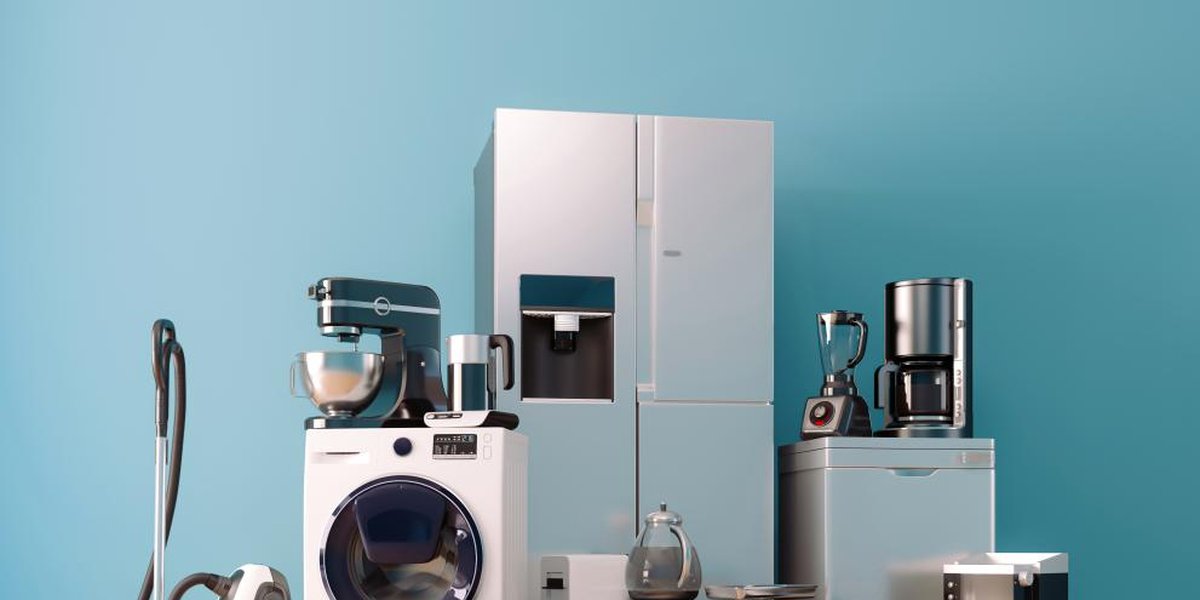
It's easiest to explain on something concrete. Take a smart washing machine, for example an Electrolux.
- The integration is how the washing machine talks to Home Assistant. The Electrolux integration knows how to connect to the machine and what the data it sends means – so HA knows what is what.
- The device is the washing machine itself. In HA you see it as one item with its manufacturer, model and the room it stands in.
- Entities are the machine's individual functions and readings. You can read or control each one separately.
| Washing machine entity | What it shows | Example state |
|---|---|---|
| Wash state | which phase the machine is in | washing, spinning, finished |
| Time remaining | how long is left | 42 min |
| Finish time | when it will be done | 14:35 |
| Selected programme | what is running | Cotton |
| Temperature | how hot it washes | 40 °C |
| Spin speed | how fast it spins | 1200 rpm |
Everything you do later, you do with entities, not with the whole machine. The automation "send me a message when the wash is done" only watches the wash state entity. A dashboard card in turn shows the time remaining and the selected programme.
It works the same with a small sensor: the Zigbee2MQTT integration finds a motion sensor in the bathroom (a device). It has several entities: motion, illuminance, battery and temperature. The automation "light on when there is motion" only works with the motion entity.
The words you will see everywhere
| Term | What it is | Example |
|---|---|---|
| Integration | The connection to a brand, protocol or service | Electrolux, Zigbee2MQTT, Shelly, Solarman |
| Device | One physical (or virtual) thing the integration found | Washing machine, bathroom motion sensor |
| Entity | One value or control of a device | binary_sensor.bathroom_motion |
| State and attributes | The entity's current value and extra details | on, brightness 80 % |
| Area | Where a device lives; everything else is sorted by it | Bathroom, Living room |
| Automation | When something happens, and if it fits, do this | motion after dark → light |
| Scene | A saved state of many entities at once | Movie night |
| Script | A sequence of steps you run with one command | Leaving home |
| Helper | Your own virtual entity | a "Guests at home" toggle |
| Apps (add-ons) | Extra programs running next to HA on the same machine | Mosquitto, Zigbee2MQTT |
| HACS | Community store for unofficial integrations and cards | AI Energy, Igy Cards |
| Dashboard and card | A screen of your home and one block on it | phone overview, thermostat card |
The entity is what matters most
Every entity has an ID in the form domain.name. The domain tells you what it is: light is a light, switch a switch, sensor a measured value, binary_sensor a yes/no thing (motion, open window), climate a thermostat. It always has a state too – for example on, 21.5, or unavailable when the device stops talking.
When something doesn't work, the first place to look is Developer tools → States. You will see every entity there, with its state and attributes.
An automation has three parts
- Trigger – when something should happen (motion, time, a change in electricity price).
- Condition – whether it should happen right now (it is dark, someone is home).
- Action – what happens (turn on a light, send a notification).
You can click all of it together in the UI, no YAML needed. But it helps to know what it looks like inside – one day you will copy it from a guide:
alias: "Bathroom – light on motion"
triggers:
  - trigger: state
    entity_id: binary_sensor.bathroom_motion
    to: "on"
conditions:
  - condition: sun
    after: sunset
actions:
  - action: light.turn_on
    target:
entity_id: light.bathroom_ceilingScene, script or automation?
- A scene is a snapshot: "these lights at 30 %, blinds down". It doesn't wait and doesn't decide anything.
- A script is a recipe, step by step: "turn everything off, wait a minute, lock the door". You, a button or an automation starts it.
- An automation starts by itself when its trigger fires.
Apps and HACS – how to extend Home Assistant
Apps (formerly add-ons) are separate programs that run next to Home Assistant – for example the Mosquitto MQTT broker or Zigbee2MQTT. You have them if you run Home Assistant OS.
HACS is a community store. It has integrations and cards that are not official – often exactly the ones you are missing. My own projects install through HACS too. Just keep in mind: anything unofficial can break after an HA update.
Dashboards and cards
A dashboard is a screen of your home – on your phone, computer or a tablet on the wall. It is made of views (tabs), and views are made of cards. A card is one block: a thermostat, a graph, a camera, a list of lights.
To start, the automatic dashboard HA builds from your areas is completely fine. Build your own once you know what you really want to see.
Common beginner mistakes
- Automations on a device instead of an entity. A device trigger is tied to one specific piece of hardware – replace the sensor and the automation stops working. An entity trigger only needs renaming.
- Keeping default names like
sensor.0x00158d0001_temperature. In a month you won't know what it is. - Twenty things from HACS in week one. Start without any and add them only when something is really missing.
- No backup before the first big update. Turn on automatic backups and keep at least one off the HA machine.
- Everything at once. Start with one room and one automation that actually helps you.
What's next
Now you know what Home Assistant is made of. In the next part we pick what to run it on – a Raspberry Pi, a mini PC, a virtual machine in Proxmox or a ready-made box – and why I run HA as a VM on Proxmox.